
Forti Token Mobile is an OATH-compliant one-time password app that adds a second layer of protection for business accounts. It generates event-based and time-based OTPs and pairs with FortiOS or FortiAuthenticator for backend validation.
This introduction explains why many organisations in Singapore choose this app to reduce account takeover risk. It highlights how an OTP-based second factor complements passwords to strengthen overall security and protect user identity.
The guide sets clear expectations: download the client, activate the token, and use generated codes to access systems safely. It also frames the app as a practical alternative to a physical token while maintaining strong authentication standards.
Readers will get a step-by-step how-to focused on daily use, privacy, and permission settings. The rest of the article walks through activation, code use, and common troubleshooting in a straightforward, professional style.
Key Takeaways
- Forti Token Mobile provides OATH-compliant OTPs for stronger access control.
- It pairs with FortiOS or FortiAuthenticator for backend validation.
- OTP second factors reduce account takeover risk for Singapore organisations.
- Readers will learn to download, activate, and use codes securely.
- The app is a mobile alternative to physical tokens with robust standards.
What FortiToken Mobile Is and How It Strengthens Two-Factor Authentication
Businesses often choose a mobile OTP app to simplify second-factor distribution and user access.
fortitoken is an OATH-compliant application that generates both event-based and time-based one-time passwords on the user's device. It creates short-lived codes so the secret seed never travels during login.
Time-based tokens produce new codes on a fixed interval and need correct clock sync to work reliably. Event-based tokens generate codes after an action, such as a button press, and do not depend on time accuracy.
How the system validates codes
The app runs on the user’s device while FortiOS or FortiAuthenticator acts as the validation server. When a user submits a code for account or application access, the server checks the value against its expected result.
- Common use cases: VPNs, firewall-protected portals, and corporate applications.
- IT can issue an app token instead of a physical token to reduce logistics and cut costs.
- Users can manage multiple tokens in one application view for different accounts or environments.
| Feature | Time-based | Event-based |
|---|---|---|
| Requires clock sync | Yes | No |
| User action needed | No | Yes |
| Typical use | Frequent logins (VPN, apps) | Occasional use (secure approvals) |
How to Download and Install FortiToken Mobile on a Mobile Device
Users in Singapore can quickly obtain the free client from official stores and prepare their device for activation.
Where to get the app
They can download free fortitoken mobile from the Apple App Store, Google Play Store, or Microsoft Store. Use the app store download that matches the device: apple app store for iOS, google play store for Android, and Microsoft Store for Windows.
Device compatibility
Before installing fortitoken mobile, make sure the device meets minimum OS requirements. iOS 12+ is required for iPhone, iPad, and iPod touch. The app also supports Apple silicon Macs (macOS 11+) and visionOS 1+.
Date, time, and first launch
Make sure the device date and time are set to automatic. Incorrect time often blocks activation.
On first launch the app prompts the user to create a PIN. Users may enable Touch ID or Face ID for easier daily use.
| Store | Platform | Minimum OS |
|---|---|---|
| Apple App Store | iPhone, iPad, iPod touch, macOS, visionOS | iOS 12 / macOS 11 / visionOS 1 |
| Google Play Store | Android phones and tablets | Android (varies by device) |
| Microsoft Store | Windows PCs | Windows 10+ |
Token Activation: Getting Your Token Working from Email or SMS
Activation starts with an emailed or SMS provision that contains an activation code and an expiration time. The message usually expires in about 24 hours, so users should act promptly.
What to expect from the activation message
The activation message includes a QR code, an activation key, and the expiry date. It tells the user which account or application the seed is for and shows brief instructions.
QR code activation
Open the app, tap the add (+) button, and allow camera access. Scan the QR code in the email or SMS to complete activation in seconds.
Manual activation and selecting type
If QR scanning is not possible, choose "Enter Manually" in the app. Select Fortinet for vendor seeds or Other for third-party seeds.
Use the recipient's email as the Name and paste the activation key into the Key field. Then save to finish activation.
Expired activation and recovery
"If the activation expires, contact the organisation's help desk to have the token reassigned and reprovisioned."
| Step | Action | Notes |
|---|---|---|
| Receive message | Check email or SMS | Contains code, QR, expiry (~24 hrs) |
| QR activation | Scan using in-app camera | Fastest method; allow camera access |
| Manual entry | Enter Name and Key | Choose Fortinet or Other as required |
Using Forti Token Mobile Day to Day for Secure Access

A clear home view helps users finish secure sign-ins quickly and with less confusion.
Understanding the home layout and 30-second cycle
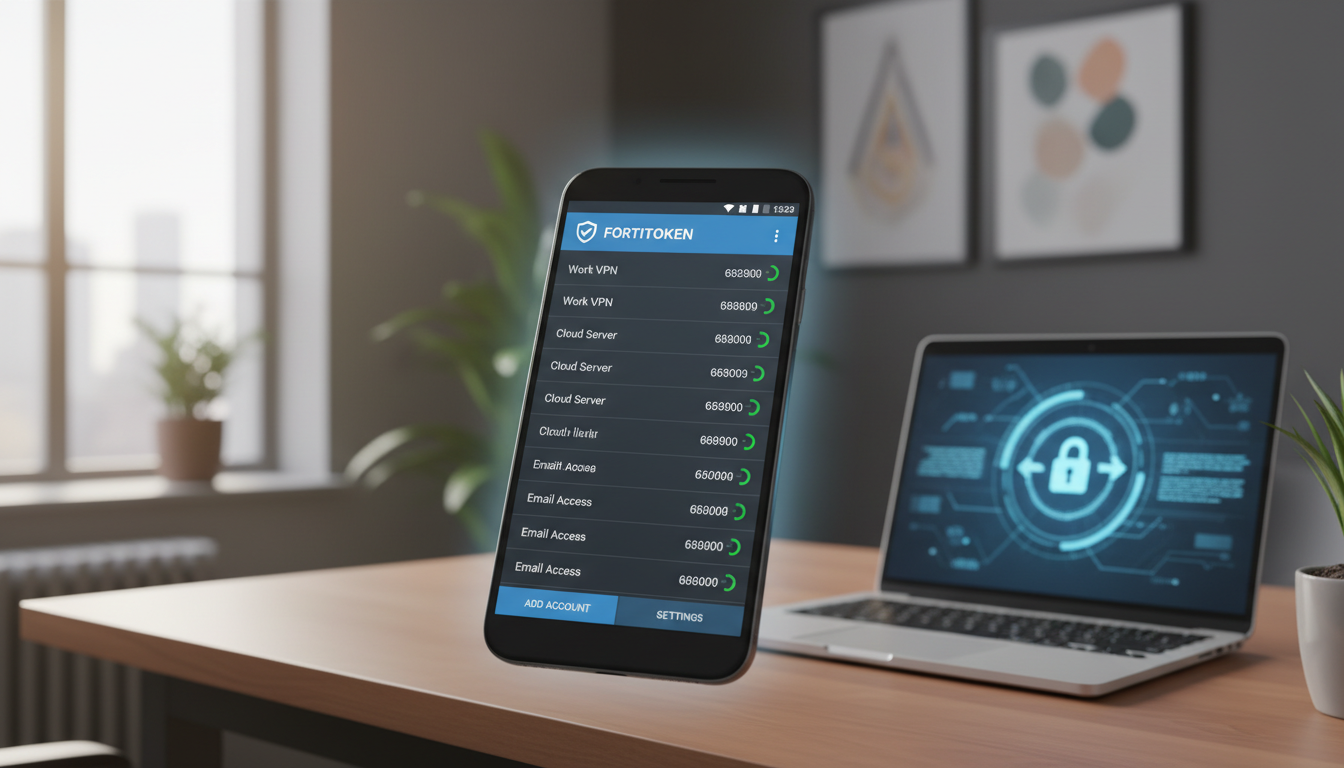
On the home screen, each installed token shows as a separate entry. Each entry generates a six-digit code that refreshes every 30 seconds.
Users should watch the countdown ring before copying. If a code is near expiry, wait for the next cycle to avoid failed logins.
Show or hide codes and why it matters
The eye icon reveals or hides digits on demand. Hiding codes is useful in public or shared workspaces to protect privacy.
Even when digits are hidden, the code can still be copied and used.
Copying codes and using them in another application
Press and hold the code, choose Copy, then paste into the target application such as a VPN login screen. Speed matters—paste the code before it expires.
This workflow supports quick access to corporate resources while keeping the phone secure with a PIN or biometrics.
| Action | What to do | Notes |
|---|---|---|
| View tokens | Open app to home screen | All tokens listed after unlock |
| Wait for code | Watch 30-second refresh | Avoid entering an expiring code |
| Show/hide digits | Tap eye icon | Hide in public for privacy |
| Copy code | Press and hold, then Copy | Paste quickly into application (e.g., VPN) |
Security, Privacy Policy, and Permissions to Know Before Enabling Authentication
Before enabling two-factor authentication, users should review the app's privacy and what it can — and cannot — do on their phones.
What the app cannot access
The app cannot change phone settings, take pictures or record video, or capture audio. It will not read or send emails or view browser history.
It also cannot remotely wipe the phone. These limits reduce the chance of unexpected data access and strengthen on-device security.
Permissions explained
- Camera: used only for QR scanning during activation.
- Internet access: required for activation, push messages, and syncing with cloud services.
- Notifications: optional; they alert users about activation or transfer events.
- Biometrics / PIN: protect tokens locally; biometrics simplify daily unlock while a strong PIN remains critical.
- Keep device awake: temporary use during internal database upgrades prevents corruption and failed operations.
Handling sensitive info and transfer considerations
During manual setup or when adding third-party seeds, users may enter an email address and token seeds. Treat these values as sensitive data.
When changing phones or travelling, token transfer reliability depends on correct steps and cloud region alignment. Enterprises should pick the correct cloud region to avoid transfer failures.
| Permission | Purpose | Notes |
|---|---|---|
| Camera | QR activation | Optional; allow only when activating |
| Internet | Activation & push | Required for cloud operations |
| Biometrics / PIN | Local access control | Keeps tokens protected on device |
"Minimising granted permissions while allowing required operations reduces risk and keeps day-to-day access reliable."
Forti Token Mobile fits into a simple three-step workflow: install, activate via QR or manual key, and use rotating six-digit OTPs for secure access. This clear process helps teams move fast while keeping enterprise logins safer.
Key success factors are practical. Keep the device date and time correct. Complete activation before the expiry window. Store the local PIN securely and enable biometrics if allowed.
In Singapore, common uses include VPN sign-ins and corporate portals that require one-time passcodes. fortitoken mobile works well for these daily prompts and scales without a physical device for each user.
Permissions are limited to activation and local protection; the app does not read personal content. Follow the organisation’s IT process for reassignment or transfers if activation expires or a device changes. This approach strengthens authentication while reducing logistics for many environments.
FAQ
What is Forti Token Mobile and how does it strengthen two-factor authentication?
It is a mobile app that provides OATH-compliant one-time passwords (OTPs) to add a second authentication factor. By generating time-based or event-based OTPs on a personal device, it reduces reliance on single-factor passwords and helps prevent unauthorized access to accounts and networks.
Which types of OTPs does the app generate?
The application supports both time-based and event-based OATH OTPs. Time-based codes refresh on a short cycle (typically 30 seconds), while event-based codes change after specific actions. Both meet common industry standards for two-factor authentication.
What validation servers does it work with?
The app pairs with compatible authentication servers such as FortiOS or FortiAuthenticator for code validation. These servers verify the OTPs during login and ensure secure integration with existing access controls.
When can a mobile token replace a physical token for account access?
A mobile credential can replace a hardware token when the organization approves cloud or app-based authenticators. Mobile tokens offer similar security and convenience, provided administrators register and validate the device with their authentication server.
Where can a user download the app for free in Singapore?
The client is available for free from the Apple App Store, Google Play Store, and Microsoft Store. Users should download the official release from the appropriate store for their device to ensure authenticity and security.
What device compatibility should be checked before installing?
Check the mobile operating system version, available storage, camera access for QR scanning, and biometric support if using Touch ID or Face ID. Verifying these items prevents installation or activation issues.
Why must date and time be correct on the device?
Accurate date and time are critical for time-based OTP generation. If the device clock is off, generated codes may not match the server’s expected values, causing failed logins or activation problems.
What happens during the first launch setup?
On first launch, the app prompts the user to create a PIN and offers to enable biometric unlock (Touch ID or Face ID) for convenience. These steps protect access to stored tokens on the device.
What should a user expect from an activation message sent by email or SMS?
Activation messages typically include an activation code, QR code link, and an expiration date/time. The message explains how to redeem the code in the app and warns users to complete activation before the code expires.
How does QR code activation work?
The app uses the device camera to scan the QR code provided by the administrator or activation email. Scanning imports the token seed automatically and associates the token with the user’s account for immediate use.
What if QR scanning is not available—can activation be done manually?
Yes. Manual activation involves entering the activation code or token seed into the app's manual-add screen. Administrators often provide a manual code or seed string for this scenario.
When should a user select "Fortinet" versus "Other" for third-party activation?
Choose the vendor-specific option if the activation instructions explicitly reference that vendor. For generic OATH tokens or third-party integrations, select "Other" and follow the manual or QR-based setup provided by the administrator.
What to do if token activation expires and access is blocked?
Contact the IT administrator to request a new activation code or a reset. Some administrators can resend the activation message or perform a server-side transfer to re-enable access without losing existing credentials.
How does the home view display multiple tokens and OTP cycles?
The home view lists all registered tokens with a countdown indicator for time-based codes, usually showing a 30-second refresh cycle. Users can quickly identify which code belongs to which account from the list.
Can the user hide or show OTP digits on the home screen?
Yes. An eye icon typically toggles visibility so users can hide sensitive digits when in public or reveal them when copying to a login field.
How can OTPs be copied and used in applications like VPN login?
The app usually provides a copy-to-clipboard button next to each OTP. The user taps it, switches to the VPN or application, and pastes the code into the verification field before the code expires.
What privacy protections exist—what can the app not access on the phone?
The client cannot access personal files, call logs, or SMS content beyond the permissions granted. It only stores token seeds and minimal account metadata needed for authentication, respecting user privacy and control.
Which permissions does the app require and why?
Common permissions include camera access for QR scanning, internet access for optional cloud features, notification permission for alerts, biometric access for secure unlock, and a keep-awake option during activation. Each permission aligns with a specific feature and should be granted only if the user needs that functionality.
How is sensitive information like email, token seeds, and transfers handled?
Email addresses may be used for delivery of activation links, while token seeds remain encrypted on the device or in approved cloud regions. Token transfer between devices typically requires administrator approval or a secure transfer workflow to prevent unauthorized moves.
Are there regional cloud hosting and token transfer reliability considerations?
Yes. Regional cloud hosting policies affect where token backups or transfer services store data. Users and administrators should confirm hosting locations and understand that cross-region transfers or outages may impact activation and transfer reliability.